
.png)



What is Digital Accessibility Testing?
Picture a checkout flow your team has tested dozens of times. Every button triggers. Every form validates. QA signs off. Your product ships. Then a user with low vision opens your app with a screen reader. They stall at the first interactive element because the button doesn’t have a label that a screen reader can interpret. The feature works. The experience doesn't.
That's the gap digital accessibility testing is designed to close.
The W3C Web Accessibility Initiative defines web accessibility as ensuring that websites, tools, and technologies are designed and developed so that people with disabilities can use them. That covers a wide range of conditions — visual, auditory, motor, cognitive — and a wide range of ways people interact with software. Some users navigate by keyboard only. Some rely on screen readers that convert on-screen content to synthesized speech. Others use voice commands, switch devices, or magnification tools that stretch a layout to its limits.

Digital accessibility testing evaluates whether your product holds up under those conditions. It goes further than confirming features work — it determines whether users can complete tasks. Can they fill out the form? Navigate past the header? Understand what happened after they hit submit?
The guidelines for those evaluations are based on the Web Content Accessibility Guidelines (WCAG), published by the World Wide Web Consortium. WCAG is the global standard — referenced by governments, procurement teams, and compliance laws across dozens of countries. Understanding what is digital accessibility starts with understanding what WCAG requires and why those success criteria exist.
Why is Digital Accessibility Important?
The audience is larger than most teams assume. According to the World Health Organization, approximately 1.3 billion people worldwide — roughly 16% of the global population — live with some form of disability. In the United States, the CDC reports that 1 in 4 adults has a disability. They're a significant portion of any user base.
Why is accessibility important? Why is digital accessibility important, specifically? Because inaccessible products exclude those users — and that has three main consequences:
- Fewer users
- Lower quality
- Legal liability
Legal Mitigation
Accessibility compliance is now a legal requirement in many major markets. In the United States, the Department of Justice has made clear through its ADA web guidance that the Americans with Disabilities Act applies to websites and mobile apps. Federal agencies face additional requirements under Section 508, which mandates that electronic and information technology be accessible to employees and members of the public with disabilities.
In Europe, the European Accessibility Act came into full force in June 2025, extending mandatory accessibility requirements to private companies operating across EU member states:
- E-commerce platforms
- Financial services (banking, payment terminals, ATMs)
- Consumer hardware (smartphones, tablets, computers)
- Digital books and e-readers
- Audiovisual media services
- Public transport services (ticketing, check-in systems)
- Telephony services
- Operating systems
PLUS QA covers what that shift means for development teams in detail in our blog post European Accessibility Act: What Does it Mean for Web Accessibility?

Similar laws exist across Canada, Australia, India, and the UK. The legal landscape has moved well past a single jurisdiction. For teams building products with international reach, there's no single law to satisfy and no single market to optimize for.
Increased User Base
Every accessibility barrier is an invisible exit point. A user who can't complete a task usually doesn't file a report — they just leave. Removing those barriers expands your product's effective reach without adding features.
The benefits extend to people who wouldn't describe themselves as disabled. Someone using a phone one-handed on a commute. An older user whose vision has changed. A parent managing a browser tab with one free hand. Accessible design handles those situations without issue because it’s built for the full range of how people use things.
More Conversions
Predictable interactions drive completion. Keyboard-friendly forms submit reliably. Logical focus order means users don't lose their place mid-task. Clear error messages let users recover instead of starting over. These improvements lead to task completion because they make the experience more reliable for everyone who uses it.
Better User Experience
The patterns that make a product accessible — consistent navigation, readable structure, clear feedback, logical heading hierarchy — are the same patterns that make a product easier to use for everyone. Accessibility work often uncovers confusing interactions, redundant steps, and unclear microcopy that would never appear on a scanner report. The product improves in ways that continue long after the audit is complete.
Digital Accessibility Guidelines and Principles
The WCAG guidelines organize its success criteria around four principles:
- Perceivable: Information and interface components must be presented in ways users can perceive. Content that exists only visually fails users who rely on screen readers or other non-visual access methods.
- Operable: Users must be able to operate the interface using their preferred input method. This includes keyboard navigation, sufficient time to interact, and avoiding content that could trigger seizures or physical reactions.
- Understandable: Content and operation must be understandable. Language should be readable, behavior should be predictable, and errors should be clearly described and recoverable.
- Robust: Content must be robust enough that a wide range of assistive technologies — current and future — can reliably interpret it. This is largely a code-quality and semantic-markup requirement.
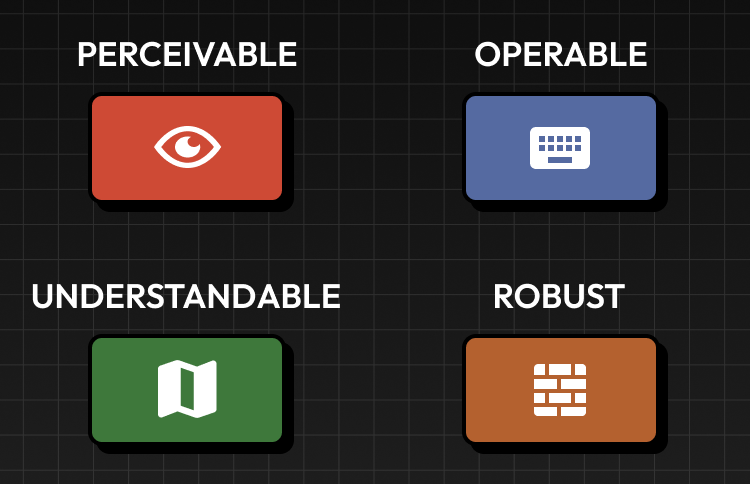
These four principles are elaborated in the WCAG 2.2 specification through specific, testable requirements, each assigned a conformance level:
- Level A: The minimum threshold. Failure at this level typically means some users cannot access or use the product at all. Non-compliance here creates absolute barriers.
- Level AA: The standard compliance target referenced in most accessibility laws, procurement contracts, and enterprise requirements. This is the level development teams should build toward.
- Level AAA: The highest conformance level. Full AAA compliance across an entire product is rarely mandated, but individual AAA criteria are worth applying where the content and audience make them practical.
The success criteria within each level are specific enough to be testable, which is what makes WCAG useful as both a development guideline and an auditing framework.
WCAG is technology-neutral by design. It describes what must work, not how to build it. WCAG 4.1.2, for instance, requires that user interface components give their name, role, and value to assistive technologies — but how developers achieve that depends on the technology stack. The standard applies across web, mobile, and emerging platforms, which is why applying it correctly requires hands-on experience with assistive technologies.
Examples of Accessibility Testing
Accessibility testing examples are easy to overlook. A heading tagged as H3 instead of H2 breaks the page's navigational structure when read aloud. A dropdown traps keyboard focus, leaving users with no way out. An image communicates meaning that the alt text doesn't capture. A video plays with inaccurate captions. In a standard review, nothing looks wrong. But each issue creates a barrier for a specific user.
PLUS QA's testers have documented the patterns they encounter most often in practice: Most Common Accessibility Violations on Web and Mobile Apps. The findings that come up across nearly every engagement:
- Alt text: Images that lack descriptive alternatives, or carry alt text that passes a scan but adds nothing meaningful. Tags like "image.jpg" or "photo" provide no information to screen reader users.
- Keyboard navigation: Interactive elements unreachable without a mouse, focus that gets trapped inside a component with no way out, or tab order that doesn't follow the visual layout.
- ARIA labels: ARIA attributes missing, misapplied, or in conflict with the native semantics of an element. Incorrect ARIA can make the experience worse for screen reader users than no ARIA at all.
- Color contrast: Text or UI elements that don't meet minimum contrast ratios, particularly affecting users with low vision or color blindness.
- Captioning: Videos without captions, or auto-generated captions that haven't been reviewed for accuracy or timing.

The W3C maintains a complete set of WCAG techniques with specific testing procedures for each success criterion — a practical reference for teams building structured test plans.
Assistive Technology for People with Disabilities
To understand why these issues matter, it helps to understand how people use your product. The W3C's research on how people use the web documents a wider range of assistive technologies than most developers encounter in practice. The variation shapes which types of issues cause the most harm.
- Screen readers convert on-screen content into synthesized speech or Braille output. They interpret document structure, including headings, labels, roles, and relationships between elements, and present it sequentially to the user. When that structure is missing or incorrect, the experience degrades in ways that have nothing to do with visual rendering. A page can look perfect and be completely unusable to a screen reader user at the same time.
- Keyboard-only navigation relies on a logical focus order and the ability to reach and operate every interactive element without a pointing device. Users tab through content, activate controls with Enter or Space, and depend on visible focus indicators to know where they are on the page. When focus order doesn't match the visual layout, or when focus indicators are styled away for aesthetic reasons, keyboard users get disoriented.
- Switch devices, eye-tracking systems, and head pointers serve users with significant motor impairments. These users often interact much more slowly than a standard user, which makes time limits, session expirations, and animated content particularly disruptive. Screen magnification tools zoom in on portions of the interface, which can break layouts that weren't designed with reflow in mind. Voice control software maps spoken commands to on-screen targets. Those targets need visible labels that match what a user would naturally say.
Accessibility testing verifies that the translation between your code and these assistive tools produces a usable experience. That verification requires both automated analysis and human judgment from people who understand how assistive technologies behave in practice.
Types of Accessibility Testing
No single testing method catches everything. Relying on a single method exclusively tends to leave gaps that only appear later. The distinction that matters most in practice is between automated and manual testing.
- Automated accessibility testing uses tools to scan code for detectable violations so teams can catch barriers early. It reveals missing attributes, invalid structure, contrast ratios below threshold, and empty interactive elements before users encounter them. It's fast, scalable, and helps prevent regressions across large codebases. Automated checks can run after every deployment, keep accessibility visible in fast-moving development cycles, and flag patterns before they become regressions. A Deque study found that automated tools identified 57% of actual issues by volume. The rest require a person who knows what to look for.
- Manual accessibility testing involves an experienced tester — often someone who uses assistive technology — performing the same tasks a user would in your product. They navigate by keyboard, run screen readers against content and interactive flows, evaluate focus management, and assess whether tasks make sense from start to finish. Unclear error messages, illogical heading structures, ARIA that conflicts with native semantics, captions that are technically present but inaccurate — these are the issues automation misses and manual testing finds.
The W3C accessibility evaluation resources outline how automated and manual testing work together — and where each has limits. Automation highlights patterns that break accessibility rules. Manual testing shows whether people can complete real tasks. One finds violations. The other confirms people can use it.
Mobile accessibility testing adds another layer because users interact differently on touchscreen devices. Gesture-based navigation, touch target sizing, screen reader behavior on iOS and Android, and the interaction between mobile browsers and assistive technologies all affect whether users can successfully navigate. Mobile users account for the majority of global web traffic, so accessibility coverage must extend beyond desktop.

Most accessibility programs combine automated checks integrated into CI/CD pipelines with structured manual evaluations at key milestones or before major releases.
Accessibility Testing Tools
Keyboard-only navigation testing starts with unplugging the mouse. Every interactive element gets tabbed through. Each one should be reachable, visually focused, and operable. It's low-tech and immediately reveals issues like keyboard traps and broken focus order.
Not all accessibility problems respond to the same evaluation method. Different tools reveal different failure types. Using the wrong one means missing what it can't detect. The most widely used web accessibility testing tools for automated scanning include:
- WAVE: A browser-based visual analyzer that overlays accessibility errors and structural information directly on live pages, useful for quick spot-checks and early development review.
- axe: An open-source engine used in browser extensions and integrated into CI/CD pipelines through libraries like axe-core. Widely adopted in enterprise testing workflows for its accuracy and low false-positive rate.
- Siteimprove: A platform-level tool that combines accessibility scanning with broader content quality monitoring, commonly used for ongoing compliance tracking across large site inventories.
Screen readers are the primary tools for evaluating how assistive technology interprets your product's structure and content. The main options by platform include:
- Windows
- Narrator is built into Windows.
- NVDA is free and widely used in accessibility testing.
- JAWS is the most common enterprise screen reader, with the largest installed base among professional users.
- Mac / iOS
- VoiceOver is built into macOS and iOS. The tool offers strong support for both web content and native app interfaces.
- Android
- TalkBack is built into the Android OS. Essential for mobile accessibility testing on Android devices.
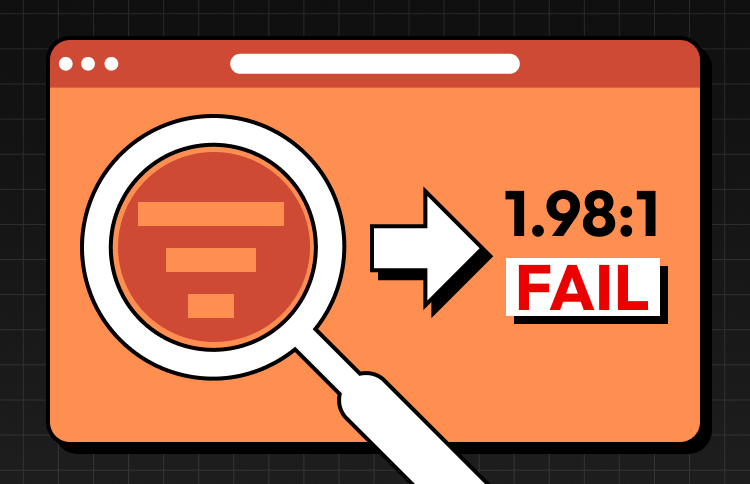
Color contrast ratio checkers verify that text and UI elements meet WCAG's minimum thresholds. The official contrast guidance specifies a minimum ratio of 4.5:1 for standard text and 3:1 for large text. The Colour Contrast Analyser — available as a desktop application and Chrome extension — is a practical tool for evaluating color combinations during both design and development. It allows direct sampling from the screen, making it useful for detecting contrast issues in rendered output that don't appear in source files.
Accessibility Checklist
A structured accessibility checklist confirms coverage across the most common failure points after deeper evaluation. Michigan State University's Basic Accessibility Checklist is a well-maintained reference aligned with WCAG requirements. The core categories are:
- Contrast: Text and interactive elements against their backgrounds meet minimum ratio requirements.
- Color: Color is never the sole means of conveying information; patterns, labels, or other indicators accompany it.
- Alternative text: All meaningful images carry descriptive alt text; decorative images use empty alt attributes.
- Use of text: Actual text is used instead of images of text wherever possible, preserving searchability and resizability.
- Heading styles: Headings follow a logical hierarchy, and levels aren't skipped.
- List styles: Lists use proper list markup so screen readers identify them correctly.
- Links: Link text describes the destination or purpose, not generic phrases like "click here" or "read more."
- Tables: Data tables use header markup; tables aren't used for layout.
- Multimedia: Audio has transcripts, video has accurate captions, and time-based media includes audio descriptions where needed.
- Native file formats: Documents are in their native format where possible, since PDF conversion can strip accessibility features.
- Movement, animations, and flashing: Moving content can be paused or stopped; nothing flashes more than three times per second.
- Shape, size, and position: Instructions don't rely solely on visual descriptors like "the button on the left" or "the circular icon."
An accessibility checklist works best as a verification step at the end of a testing cycle — confirming coverage after the deeper evaluation, not as a substitute for it.
The Difficulties of Accessibility Testing
Accessibility testing is harder than it looks. The difficulty is not primarily technical. It's perceptual. Developers and designers build products using standard input methods such as mouse, keyboard, and high-resolution display. That shapes what they notice. Issues that would be immediately obvious to a screen reader user can go unnoticed by a tester without a visual impairment using a mouse.
The most documented gap is also the most consequential. The W3C explicitly recommends involving users with disabilities in accessibility evaluation — not as a best practice, but because it changes what gets found. The research on common mistakes in accessibility user testing is consistent. Teams that test with only one disability type, rely entirely on automated tools, or treat accessibility as a final checkpoint consistently miss issues that users hit every day.
PLUS QA's accessibility team includes testers with disabilities — people who use assistive technologies as part of how they work. Their perspective changes what gets reported and how findings get prioritized.
Two other challenges come up consistently across accessibility programs:
- Accessibility testing tools have steep learning curves. Running a screen reader effectively, understanding when ARIA roles should and shouldn't be applied, and interpreting automated scanner output accurately all take time to develop. Teams that run tools without that background tend to fix easy-to-understand warnings but miss the ones that block users.
- WCAG guidelines can be genuinely ambiguous. The success criteria are written to be technology-neutral and durable, which sometimes makes them difficult to apply to specific components or interaction patterns. Teams interpreting the same requirement can reach different conclusions, and without experienced guidance, those judgment calls produce inconsistent results.
The Benefits of Outsourcing Accessibility Testing
For most development teams, an accessibility assessment reveals the limits of what internal resources can sustainably cover. Testing tools require expertise to use well. Standards interpretation takes experience with how regulators and assistive technology vendors have applied specific criteria in practice. And coverage across devices, operating systems, browsers, and assistive technologies takes infrastructure most teams don't maintain in-house.

Working with a partner who specializes in accessibility testing addresses those gaps without pulling engineers off feature development.
- Frees up your internal team. Accessibility specialists handle the evaluation while your developers keep building.
- Experience with testing tools. Testers who work daily with screen readers, keyboard-only navigation, and contrast analyzers get more signal from those tools than teams using them occasionally.
- Familiarity with standards and guidelines. Experienced accessibility testers know where WCAG is clear, where it's ambiguous, and how enforcement bodies have interpreted specific criteria.
- Faster turnaround. A team that runs accessibility programs continuously moves through evaluation faster than an internal team ramping up.
- More comprehensive and reliable testing. Broad device coverage, multiple assistive technologies, and both automated and manual methods catch findings that single-tool scans miss.
- Clear and actionable reporting. Findings are documented with the context developers need, including the issue, who it affects, which WCAG requirement it violates, and what remediation requires.
Accessibility work done well compounds. The patterns testers flag in one audit inform how developers approach the next feature, building institutional knowledge that carries forward into every release cycle.
Partnering with PLUS QA
PLUS QA provides accessibility testing services to enterprise clients across industries, including Nike, Walmart, and Airbnb. That experience helps teams ship products that more people can use.
Manual and automated evaluations are conducted by accessibility specialists — including testers with disabilities who encounter these barriers firsthand — who bring both technical depth and direct experience with assistive technologies. Testing runs across more than 600 real devices in PLUS QA's lab, covering the most widely used browsers, operating systems, and assistive technology combinations. All testing is performed by an onshore, US-based team.
PLUS QA's accessibility testing services include:
- Accessibility Audits. A structured evaluation of your product against WCAG criteria, with findings documented by severity and accompanied by remediation guidance.
- Accessibility Testing. Ongoing or milestone-based testing integrated into your development and release process, combining automated coverage with human-led evaluation.
- Accessibility Conformance Reports. Formal documentation of your product's conformance status, used in procurement reviews, legal due diligence, and enterprise partnership agreements.
Digital accessibility testing determines whether the product you shipped works for the people using it. The later issues are found, the more they cost to fix.
PLUS QA can tell you where your product stands against WCAG criteria, where your automation coverage stops, and which issues block users. Your team will understand what to fix and how to prioritize it.
Contact PLUS QA to find out where your product stands.